
The biggest change this week is how you work with Okou: one AI teammate, with Projects to keep different jobs organized. The multi-agent setup has been retired. Here's where your conversations and instructions live, plus Project mentions, chat-level connector accounts, friend referrals, template previews, and new Suno and Fellow connections.
One Okou, organized by Projects
You no longer need to create or choose a different agent for each kind of work. Start with the same Okou, whether you're researching a customer, preparing a launch, or reviewing a report.
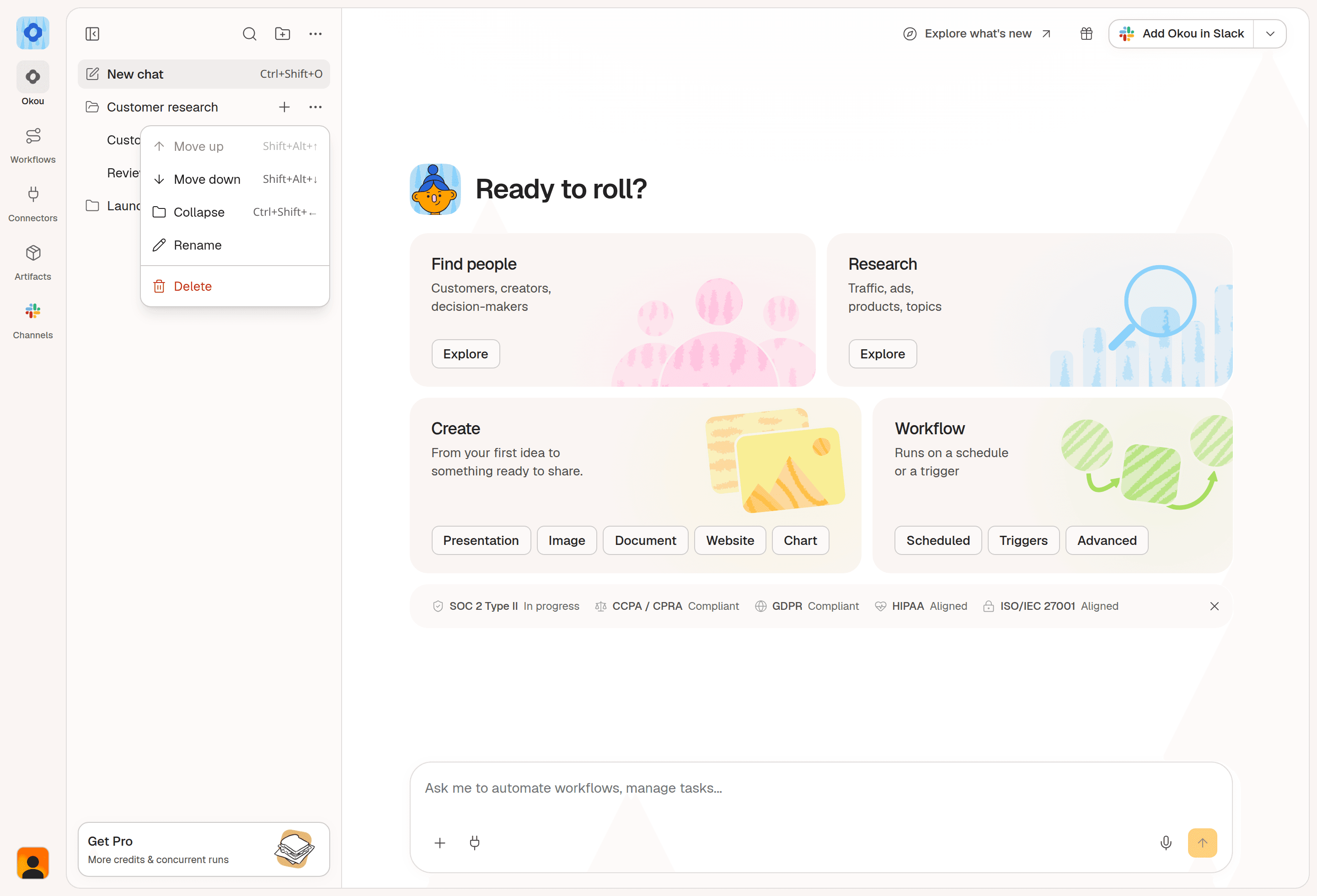
Use Projects to group related chats by customer, job, or topic. Create a Project from the chat sidebar, then start a chat inside it or move an existing conversation into it. Projects organize your own conversations; they are not shared team folders.
Type @ in the message box and choose a Project to help Okou find relevant conversations you can access. For example, mention your customer-research Project when asking for a follow-up brief.

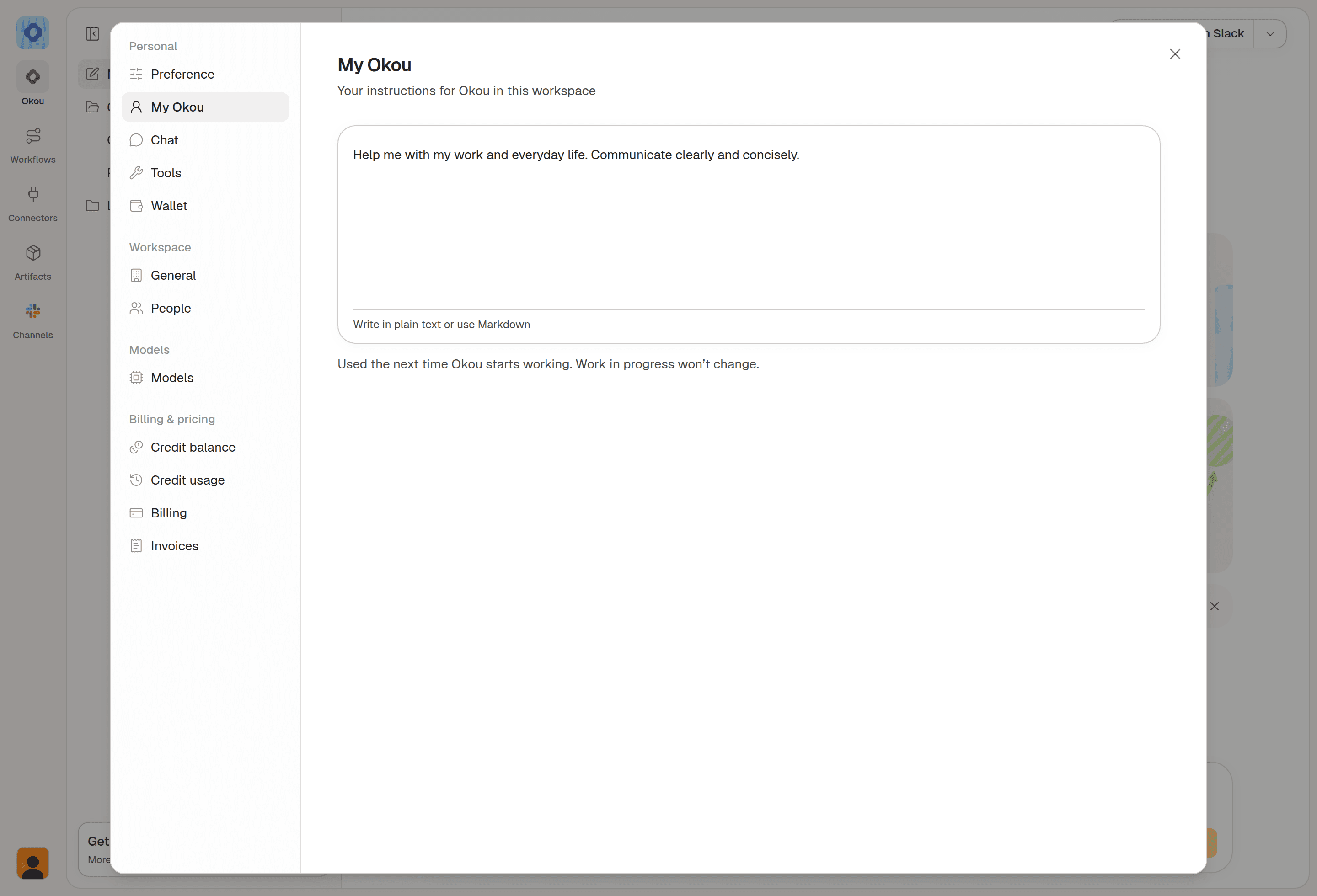
Your personal Instructions live in Settings → Personal → My Okou. Former agents' task-specific instructions have been carried into reusable Workflows, so you can find the procedures you taught them without managing separate agents.
You can also reorder Projects with Move up / Move down. When deleting one, choose whether to keep its chats or delete them too; deleting the chats requires an additional confirmation.
Choose connector accounts per chat
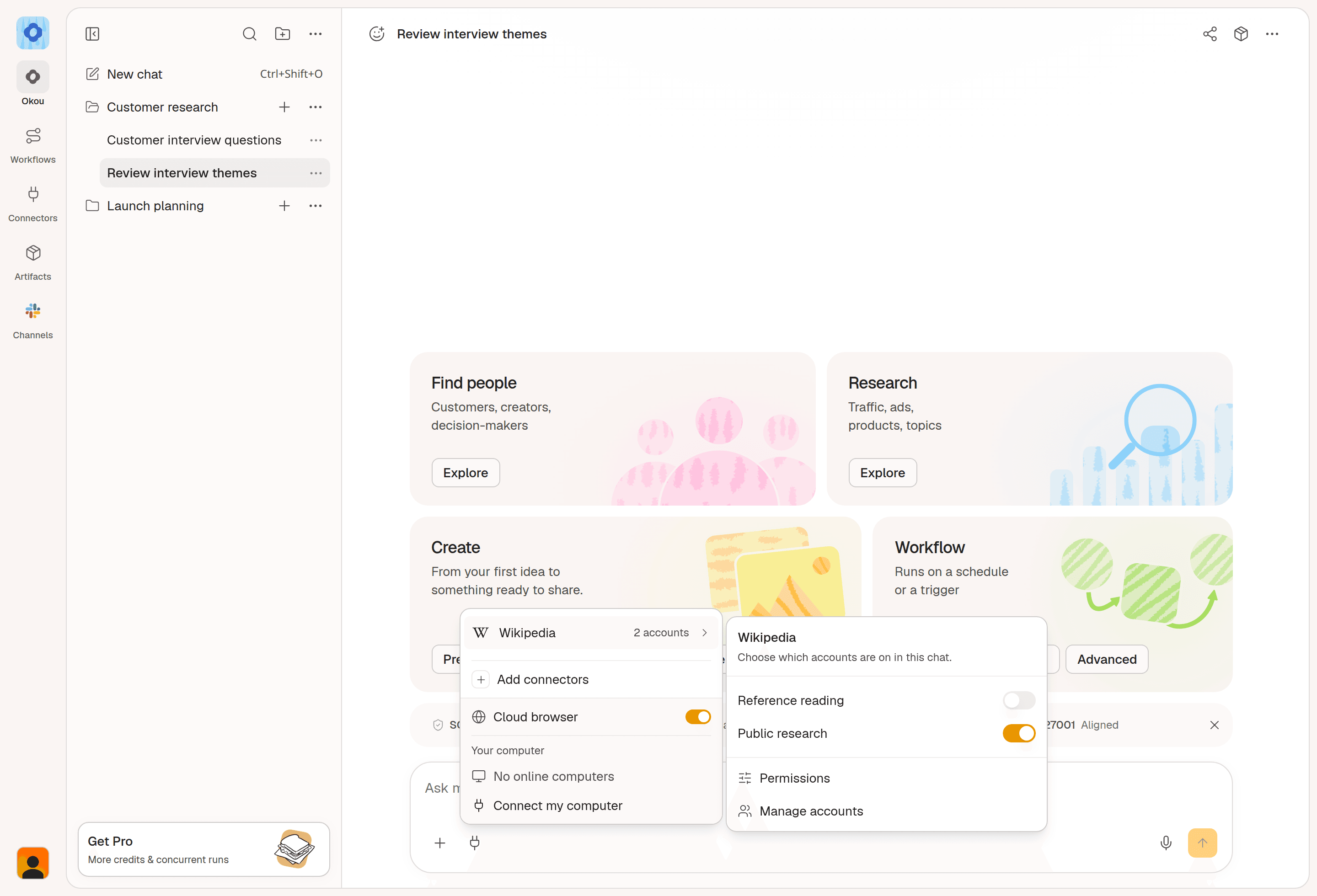
Choose which connected accounts Okou can use for the conversation you're having. Open Connectors in the message box to turn account access on or off for that chat, and select the account you want to use when you have more than one.
This replaces managing connector access separately for each agent. Account selection belongs to the chat; your permission rules apply across your chats. For example, choosing a different account does not create a separate set of permissions for that conversation.
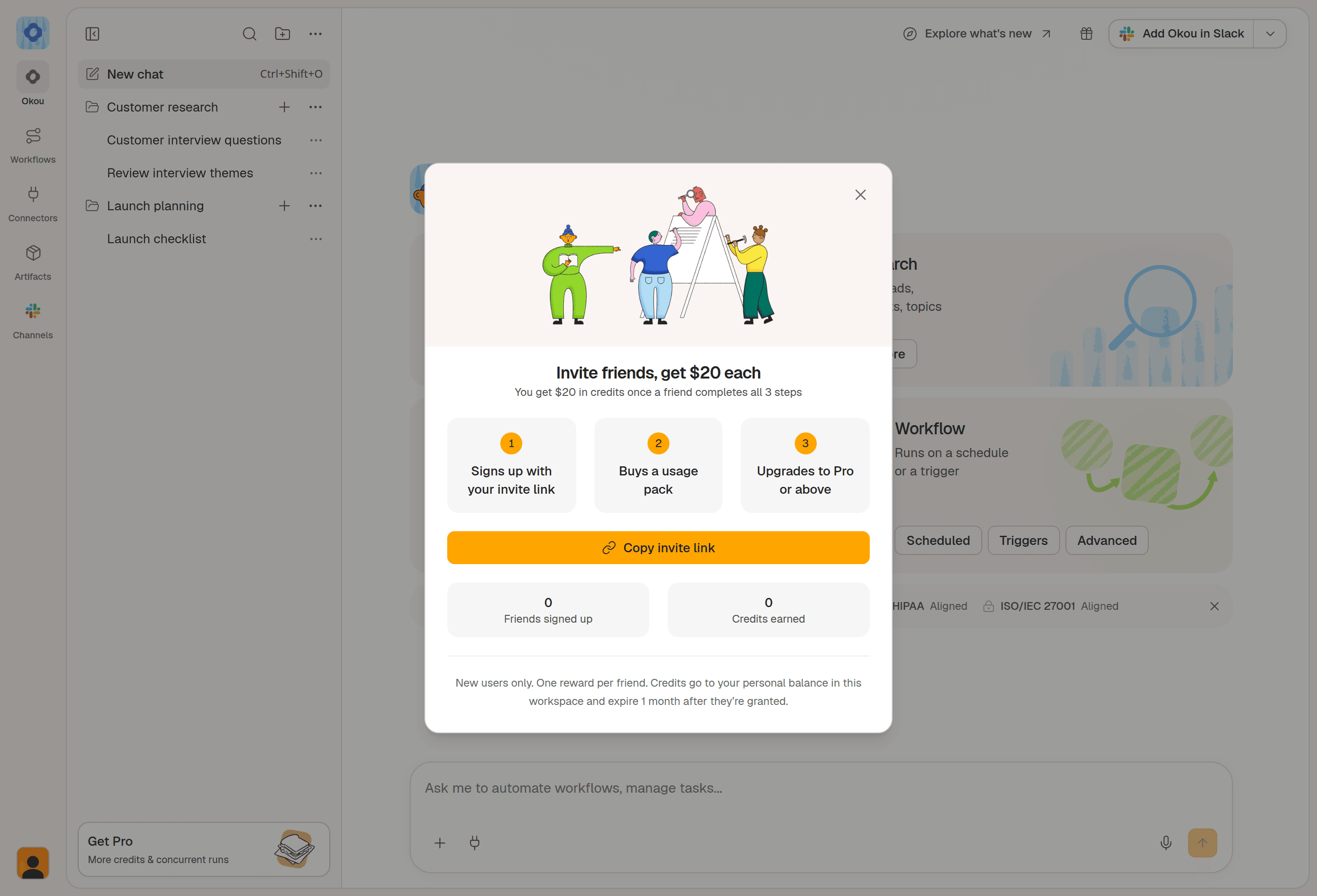
Invite friends, get $20 each
Invite someone to try Okou and earn $20 in credits for each qualifying friend. Open Invite your friends and copy your invitation link.
To qualify, your friend must be a new user who signs up through your link, buys a usage pack, and upgrades to Pro or above. Each friend can earn you one reward. Credits are added to your personal balance in that workspace and expire one month after they are granted.
Home capability cards
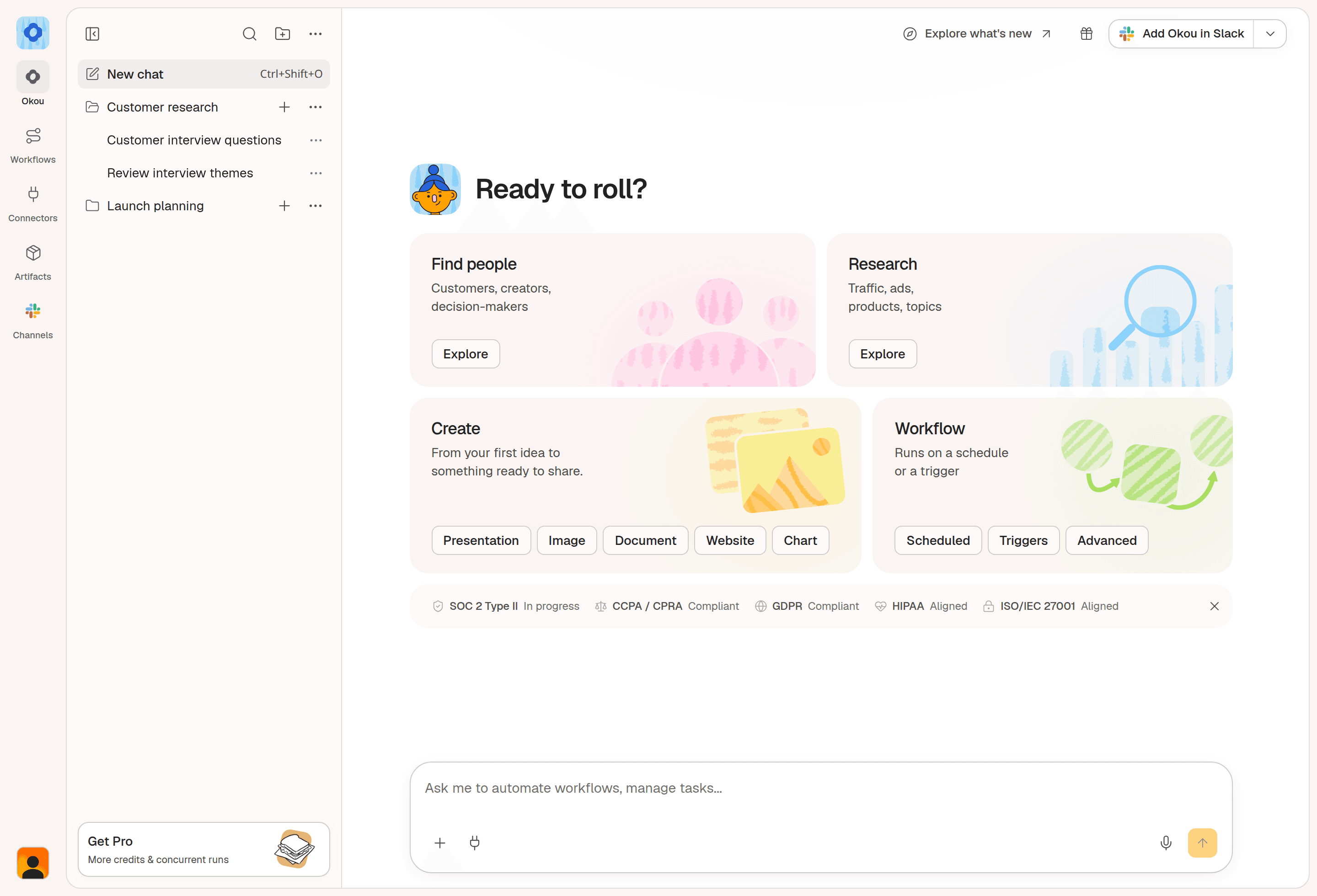
Not sure where to start? Four cards on the home page offer a starting point: Find people, Research, Create, and Workflow.
Explore customer or creator research, choose an output such as a presentation or document, or start with a scheduled task or trigger. You can also write your request directly in the message box.
Recommended presentation, document, and website template cards now have an eye icon. Open a preview before selecting a template. Browse the layout first, then choose the template when you're ready; previewing leaves your current message draft unchanged.
Connectors
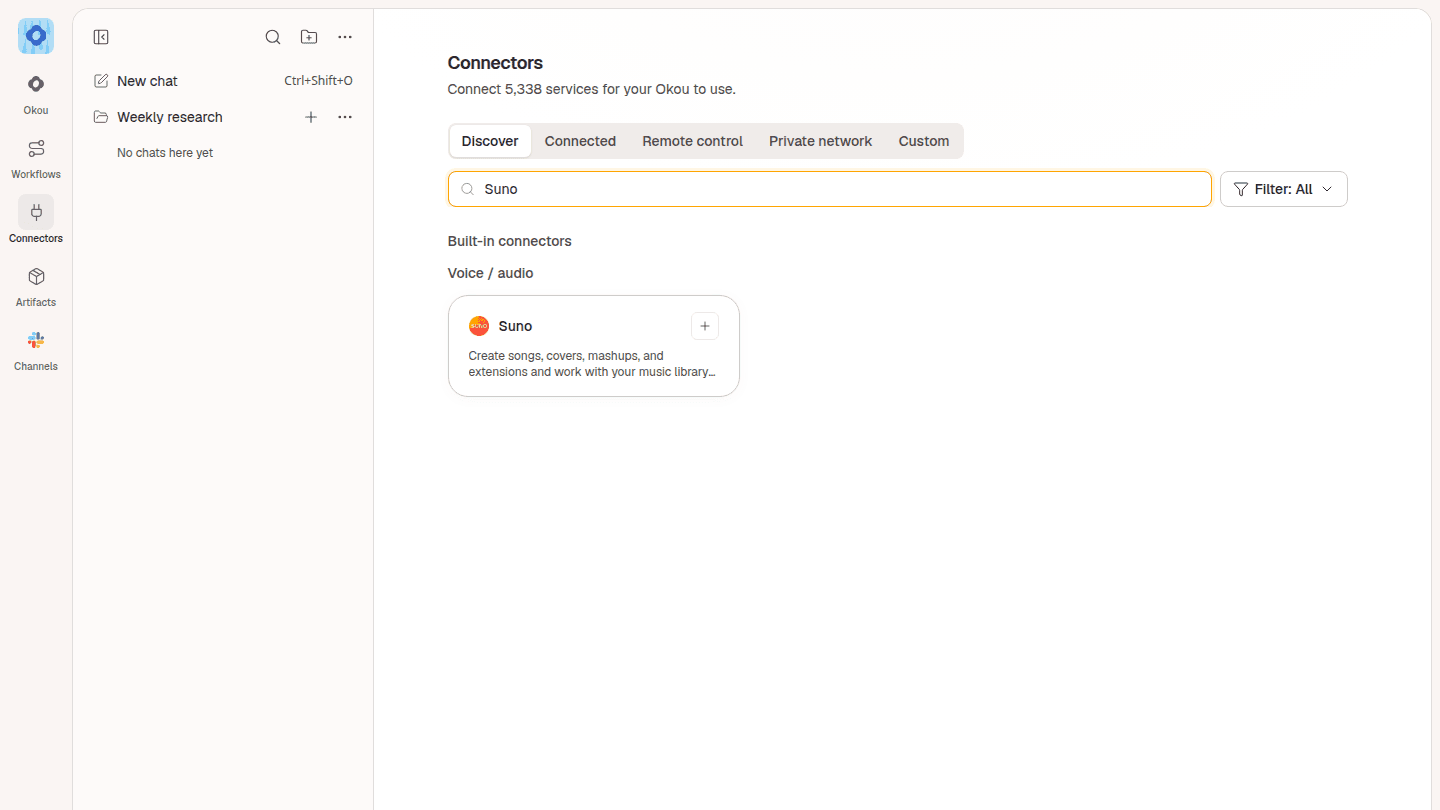
Connect Suno to create music and work with your music library, or Fellow to bring meeting notes, transcripts, and action items into your work with Okou.
Suno's connection is in beta and uses your Suno credits and limits. A Fellow workspace admin must first enable MCP connections and the tools you're allowed to use.
Also new: LeadMagic, SISTRIX, and Conductor QuickBooks Desktop, adding options for prospecting, SEO work, and bookkeeping.
Open Connectors, search for the tool you use, and review its connection requirements. The service's own account, API, and plan requirements apply.
Smaller updates
- Image and video uploads show a thumbnail as soon as uploading begins.
- Paste more than 10,000 characters and Okou turns the text into a
.txtattachment. - Follow-up suggestions include saving work as a Workflow and watching for an email reply. Reply reminders support Gmail.
- If a model error interrupts a chat started from a channel such as Slack or Teams, recovery controls let you choose another model.
- The sharing menu adds an explanation below each permission option.
Last week in the community
Last week, we got together with founders and GTM practitioners at two Bay Area events:
- November 18 · San Francisco: GTM Workflows in Practice: Roundtable Discussion & Dinner, hosted with Mem0 and Women in AI, focused on practical workflows across prospecting, outreach, CRM, and reporting.
- November 19 · Mountain View: Foundersgiving: Find Your Next Customer with Okou, with SEAMATE, brought customer discovery, lead research, and personalized outreach into a hands-on workshop.
Thank you to everyone who joined us and shared their work. We'll be sharing lots more from both events this week and next. Stay tuned!
That's it for this week. Open Okou, organize a few related chats into a Project, and bring your next task to the same teammate.


